
AI Inbox Management: A System That Actually Gets You to Zero
How to use AI triage, drafting, and scheduling to cut email time in half — with the rules, prompts, and privacy checks that keep automation from causing damage.

Email is not a writing problem, it is a sorting problem. Most people spend the majority of their inbox time deciding what each message is, not composing replies. AI is unusually good at that first part — and mediocre, in an expensive way, at the second.
Here is a system built around that asymmetry.
Step 1 — Separate triage from replying
Do them at different times of day. Triage is fast, shallow, and mechanical. Replying is slow and requires context switching. Blending them is why a 40-message inbox eats two hours.
Two blocks: fifteen minutes of triage in the morning, one focused reply block later. Nothing else touches the inbox.
Step 2 — Let AI classify, not decide
Automatic labelling into four streams handles most of the volume:
- Needs me — a decision or an answer only you can give.
- Needs a reply, not from me — delegate or forward with one line.
- Read later — newsletters, updates, reports.
- Archive — receipts, notifications, confirmations.
The key rule: auto-archive is fine, auto-reply is not. Classification errors that hide a message are recoverable through search. Classification errors that send something wrong are not.
Give your classifier explicit criteria rather than vibes:
Label as "Needs me" only if the sender is asking for a decision, an approval, or information that is not in a shared document. Client domains always outrank internal ones. Anything mentioning contract, invoice, outage, or legal is always "Needs me".
Step 3 — Summarise threads, not messages
The genuine time-saver is thread summarisation on long chains. A twelve-message thread you were CC'd into becomes three lines: what is being decided, what the disagreement is, and what is being asked of you.
Prompt shape:
Summarise this thread in three bullets: the decision at stake, the current position of each participant, and the specific action requested from me. Then draft nothing.
That last clause matters. Unprompted drafting is how you end up reading generated text instead of thinking.

Step 4 — Draft with constraints
When you do draft, constrain hard. Unconstrained AI email has a recognisable smell: over-warm, over-long, over-hedged.
Constraints that work:
- Word ceiling. "Under 80 words."
- One ask per email. Stated explicitly at the end.
- Ban the openers. No "I hope this email finds you well", no "Just circling back".
- Match register. Provide two of your own past emails as a voice sample.
- No new commitments. "Do not propose dates, prices, or scope not present in my notes."
The last one prevents the most damaging failure: a polite draft that quietly promises something you cannot deliver.
Step 5 — Templates beat generation
For the twenty messages you send repeatedly — scheduling, intro requests, declining, invoice chasing, status updates — a saved snippet is faster and safer than generating each time. Use AI once to write the template well, then reuse it.
Reserve generation for the genuinely novel message, which in most jobs is maybe two per day.
Step 6 — Automate the surrounding chores
The pipeline around email is where automation pays without risk:
- Attachments filed automatically into the right cloud folder by sender or subject pattern.
- Meeting requests turned into calendar holds with a scheduling link, not a back-and-forth.
- Receipts parsed into an expense sheet.
- Follow-up reminders created for any message where you asked a question and got silence for four days.
- Lead emails enriched and pushed into the CRM with a summary line.
None of these send anything on your behalf. That is precisely why they are safe to leave running.
Privacy: read this before you connect anything
Your mailbox is the most sensitive dataset you own — it contains password resets, contracts, health information, and other people's private words that they did not consent to share with a vendor.
Checks before granting access:
- Scope. Does the tool need full mailbox access, or can it work with read-only or a single label? Grant the minimum.
- Retention. Is message content stored, and for how long? Ephemeral processing is strongly preferable.
- Training. Confirm in writing that your content is not used to train models.
- Residency and compliance. Where is data processed, and does that satisfy your obligations if you handle EU or health data?
- Revocation. Know where to revoke the OAuth grant, and test it once.
For regulated work, a locally-processing tool or your existing provider's built-in features may be the only defensible choice.

What good looks like after two weeks
Realistic outcomes from teams running this: triage time down roughly 60%, total email time down 30–40%, and — more importantly — fewer dropped threads, because follow-up reminders are automatic rather than remembered.
What does not happen: an empty inbox that maintains itself. The system reduces the decisions you make manually. It does not remove the ones that actually require you.
Extend this into the rest of your week with our AI productivity stack, automate the adjacent chores using 12 AI automation workflows, and see AI Productivity & Automation for more.
Keep reading
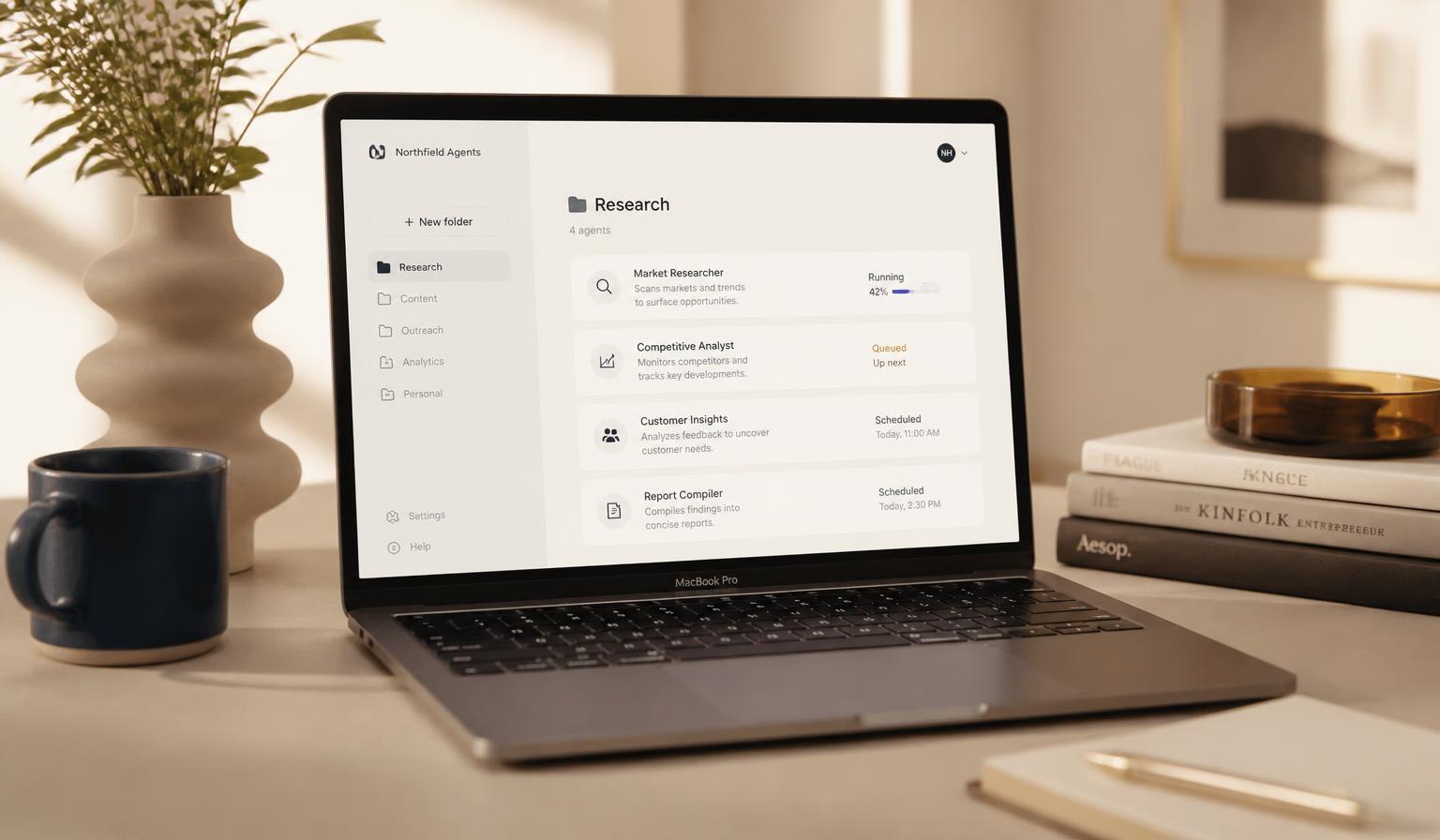
Anthropic's Cowork Just Moved Agentic AI Out of the Terminal — Here's What It Actually Does
Anthropic launched Cowork, a folder-based agent inside the Claude desktop app that edits your real files. We break down how it works, what it costs, the safety warnings, and how it compares to rival AI agents.
Building an AI Second Brain: Notes, Research, and Retrieval That Actually Works
NotebookLM, Notion AI, Obsidian and Mem compared — plus a practical system for capturing, organising, and querying your own knowledge with AI instead of hoarding it.
12 AI Automation Workflows You Can Build This Weekend (Zapier, Make, n8n)
Concrete AI automations for email triage, lead enrichment, content repurposing, and reporting — with the platform to build each one on and the traps to avoid.